

Notifications
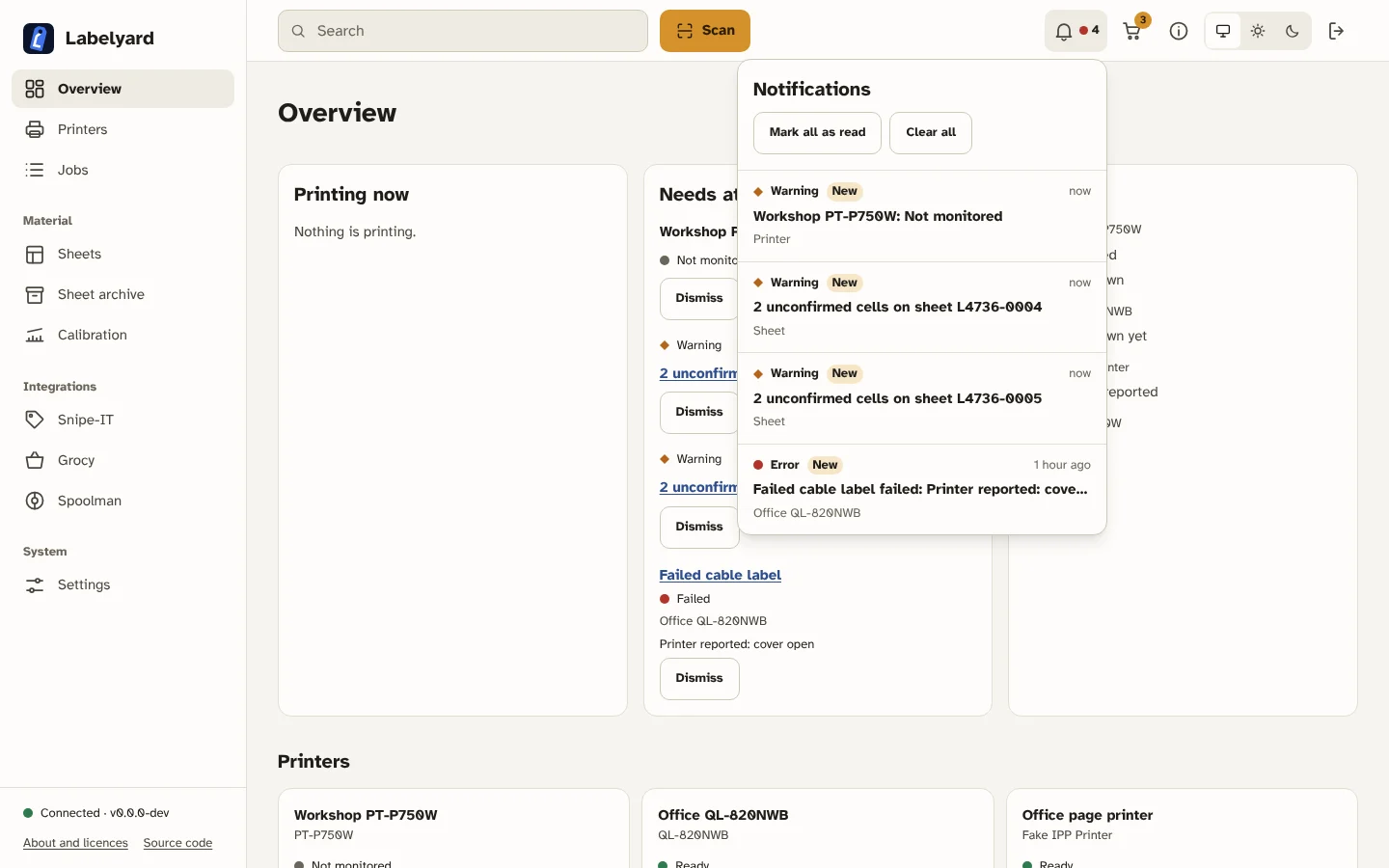
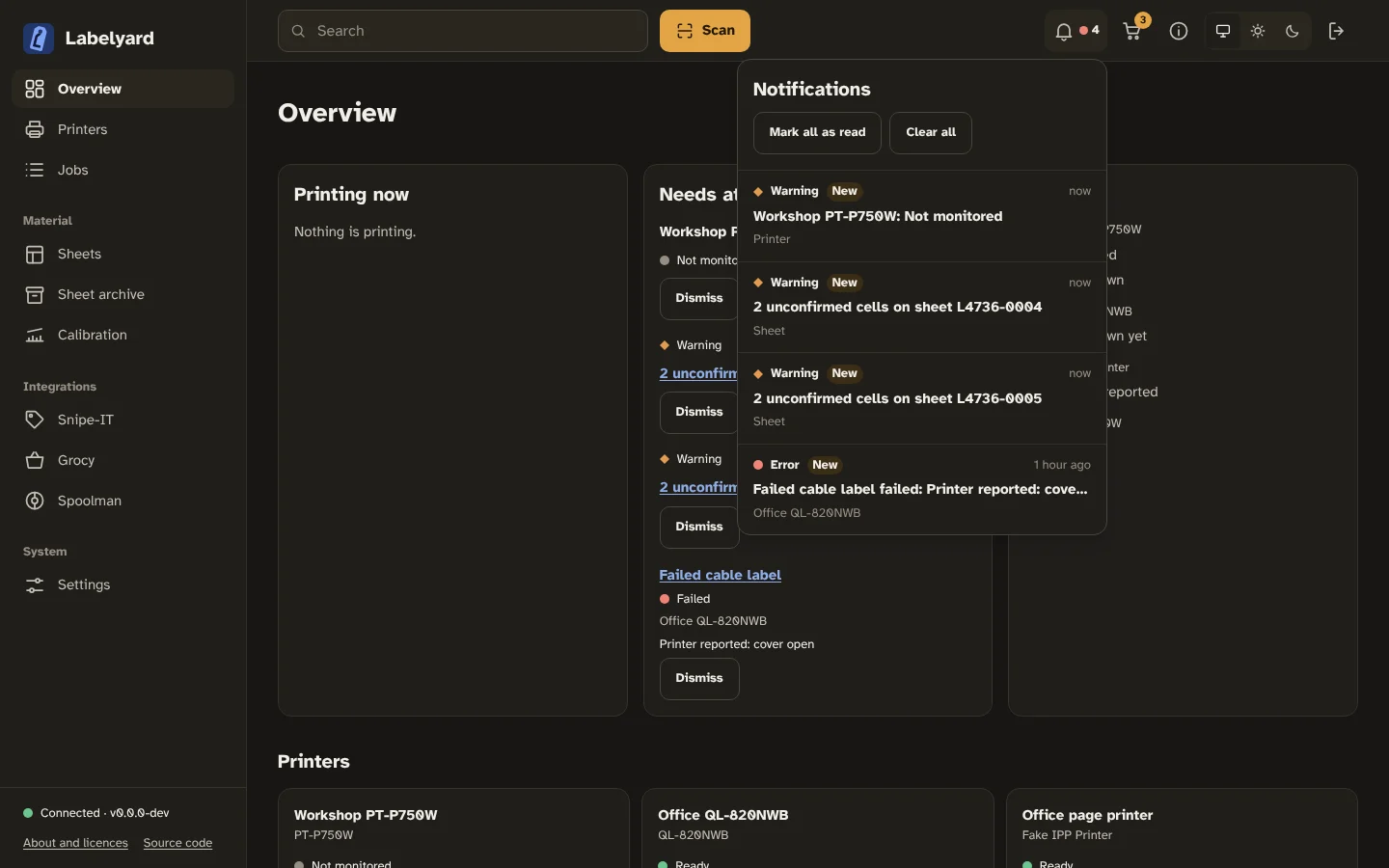
The bell in the top bar lists what happened and what needs a look: your print jobs with their live state, printer problems for as long as they last, and sheets with unconfirmed cells. Open it to see the entries, newest first. An entry is a link: it opens the job, printer or sheet it is about and closes the panel.
The dot and the count
Section titled “The dot and the count”The dot next to the bell shows the highest severity among the unread entries; the number is how many are unread (99+ above 99). When everything is read there is no dot.
| Shape | Severity | Examples |
|---|---|---|
| Red dot | Error | A failed job, an offline printer, a printer that answered as a different device |
| Yellow diamond | Warning | An open cover, a paused printer, a status that is out of date or not monitored, a low supply, a sheet with unconfirmed cells |
| Green dot | Success or information | A finished, queued, printing or cancelled job; a failed job that printed on retry |
A severity is always a shape and a word, never only a colour. The bell’s name for a screen reader says the same: “Notifications, 3 unread, the most severe is an error”.
What becomes an entry
Section titled “What becomes an entry”- Jobs of the last 24 hours, one entry per job at its current state. A new state is a new entry: a job that was printing and is now done is unread again.
- A failed job that you retried successfully stays in the list as information (“failed, printed on retry”) and is no longer an error. This also holds for a chain of retries that ends in a finished job.
- Printers while the condition lasts: offline, a problem, stopped, paused, another device at the address, a status that is stale or not monitored, a supply that is low or empty. The time shown is the moment this browser first saw it.
- Sheets with unconfirmed cells, while there are any.
A tape printer’s condition is one entry per thing it reports, in words (“Cover open — close it to print”, “No tape or paper — load it to print”). An open cover is a warning while nothing waits to print, and a problem once a job waits or a print was refused because of it. Entries for a printer’s condition go by themselves when the condition ends.
Mark as read, clear, dismiss
Section titled “Mark as read, clear, dismiss”| Action | Where | What it does |
|---|---|---|
| Mark all as read | Panel | Every entry stays; the dot and the count go |
| Clear all | Panel | Hides every entry up to the newest one present; an entry that is newer shows again |
| Dismiss | Overview, “Needs attention” | Hides one entry from the card and from the panel |
The Needs attention card of the overview lists the unresolved errors and warnings that you have neither cleared nor dismissed.
Read, cleared and dismissed entries are kept per browser in its local storage, so another browser or another person starts with everything unread. If the browser blocks its storage, the state lasts for the tab.
A new version
Section titled “A new version”When the hub runs a newer version than the open page, a notice appears in three places: a toast at the bottom right (above the tab bar on a phone; it steps aside while you type), a box in the sidebar (in the menu on a phone) and an entry in the notifications. Later closes the toast for that version, also after a reload and in other tabs of the same browser; a newer version shows it again. The box and the entry stay until the update is applied. Reloading loses unsaved input on the current page.
Live updates
Section titled “Live updates”The list follows the live stream of the hub. When the stream is down, the panel says “Live updates paused; the list may be out of date.” and reads everything again when the stream returns.
On a phone
Section titled “On a phone”On a screen narrower than 640 px the panel is a full-height sheet with a close button. It follows the visible area, so the on-screen keyboard does not push its buttons out of sight.